I have an old friend who seems to always have problems with his PC. One of these is lost windows passwords. I told him to remember always to set a short and easy password. But He still set long complicated passwords. So of course one day he forgot the password to his login screen on Windows XP Operation system. He brings pc to me and asks, "I forgot my login password. Can you give me a help?" I laugh and say "Of course!"
Below are the methods which I use to bypass his lost login password.
1. when you boot up pc, press F8 and select the safe mode at the following menu (or however your bios lets you select safe mode. If you are not sure how to do, just shut off PC while the Windows XP loading screen comes on and it will tell you windows had trouble starting blah blah...select safe mode. This is a method of last resort)
2. Select administrator account. There should be blank Password for this account. If there is, you may be screwed and you have to use the Windows Password Recovery Tool 3.0, it can bypass any windows password at any time.
3. Once you have log in to administer account, select account options. ( My Computer >> Control Panel >> User Accounts. and select the account you are locked out of.
4. Change this account’s password.
5. Congratulations!
There you have it. You can now reboot you pc and load windows in normal mode, then use the new set password to get back inside your account. Now you might be asking your self, "Well if it is quite easy to hack user password, is there a way to set user password that no one can hack?" Yes! A bios password is by far the most effective way to safe guard your PC from unwanted use. To do this simply go into bios settings and find the password option.
Hope this tip helps for you!
Showing posts with label xp password. Show all posts
Showing posts with label xp password. Show all posts
Thursday, 3 June 2010


Sunday, 2 May 2010
Lost Windows XP Password?
Because of Windows XP’s security features , it is virtually impossible to login into the system without the password. You can try several options to get around windows XP login password.
If you have access to another user account with administrator rights, you can use that account to change the password
of the account that is locked out. You can also use the default Administrator account that is built into Windows XP.
First you need to boot the system into Safe Mode.
1.Restart your system.
2.When you see the blue Dell globe or screen, press the ( F8 ) key about 3 times a second.
3.You should get the Windows startup menu. Use the (Up or Down) arrow keys to highlight (SafeMode)
4.Press (Enter) on (Safe Mode), then press (Enter) on (Windows XP).
5.The system should boot to Safe Mode.
Once you are at the Account Log on Screen, click on the icon
for the user account with administrator rights, or click on the icon
for the administrators account.
Note: For Home the Administrator account isn't normally shown & in Safe Mode you have to press Ctrl+Alt+Delete keys twice to show.
For PRO you can do this in normal mode
When the system has booted to the desktop, use the following steps to change the accounts password.
1.Click Start, Control Panel, Administrative Tools.
2.Click Computer Management.
3.Double click Local Users and Groups, double click the folder Users.
4.Right click on the account name that is locked out, and click on Set Password.
5.You may get a warning message about changing the password, simply click proceed.
6.Leave the New Password box blank, also leave the Confirm Password box blank.
7.Click OK, and OK again.
8.Then close all Windows, reboot the system and try to log in.
There are also applications that can recover the password for you.
The following companies provide these applications at a cost.
PasswordSeeker: Windows Password Recovery Tool 3.0
Thursday, 29 April 2010
Lost Windows XP Password?

Because of Windows XP’s security features , it is virtually impossible to login into the system without the password. You can try several options to get around windows XP login password.
If you have access to another user account with administrator rights, you can use that account to change the password
of the account that is locked out. You can also use the default Administrator account that is built into Windows XP.
First you need to boot the system into Safe Mode.
1.Restart your system.
2.When you see the blue Dell globe or screen, press the ( F8 ) key about 3 times a second.
3.You should get the Windows startup menu. Use the (Up or Down) arrow keys to highlight (SafeMode)
4.Press (Enter) on (Safe Mode), then press (Enter) on (Windows XP).
5.The system should boot to Safe Mode.
Once you are at the Account Log on Screen, click on the icon
for the user account with administrator rights, or click on the icon
for the administrators account.
Note: For Home the Administrator account isn't normally shown & in Safe Mode you have to press Ctrl+Alt+Delete keys twice to show.
For PRO you can do this in normal mode
When the system has booted to the desktop, use the following steps to change the accounts password.
1.Click Start, Control Panel, Administrative Tools.
2.Click Computer Management.
3.Double click Local Users and Groups, double click the folder Users.
4.Right click on the account name that is locked out, and click on Set Password.
5.You may get a warning message about changing the password, simply click proceed.
6.Leave the New Password box blank, also leave the Confirm Password box blank.
7.Click OK, and OK again.
8.Then close all Windows, reboot the system and try to log in.
There are also applications that can recover the password for you.
The following companies provide these applications at a cost.
PasswordSeeker: Windows Password Recovery Tool 3.0
Thursday, 25 February 2010
How do I stop Windows screensaver asking for password?
Question:
Okay, I have one - I want to know if there's a way to change the time for the login screens to show up in Windows XP Pro? When I walk away from my computer, I come back to find out that I have to log in again. I really don't need my machine to time out like that because I am the only one that is using it. I do have a screen saver set up to go on after about 15 minutes but it's annoying to have to log in each time I come back to the computer.
Answers:
What you're seeing is the screensaver password protect feature of Windows XP. To disable this, you need to get into the Display Properties screen. There are (at least) two ways to get there. Right click on an open area of your desktop and click Properties, or go into Control Panel and double click Display.
Go to the Screen Saver tab, and uncheck the "On resume, password protect" box (you'll see it circled in the screenshot below). To leave the password protection but extend the time before a password is required, increase the minutes in the "Wait" box on that tab and leave the password protect box checked.

Before disabling it, be mindful of the potential consequences. Under certain circumstances the security provided by this inconvenience should be considered benefit enough to cope with it. This prevents anyone from walking up to your computer and having access to all of your data. If this is a home PC, that might not be of any concern. In small business environments where data is shared amongst everyone anyway, it's also probably not of much concern other than for certain staff that have access to data like payroll that is confidential.
Another thing to keep in mind is if this is a computer in a business with a server, chances are pretty good it's in a Microsoft Active Directory domain. At a very basic level, Active Directory puts all computers at a business within an organizational structure that centralizes resources and authentication (verifying your username and password), affording greater security, flexibility and control. One feature of Active Directory is the use of Group Policies which allow
administrators to define what users can and cannot do with their machines, including mandatory configuration settings.
It's possible to configure Group Policies so users cannot modify screen saver settings, including the time to wait before activating the screensaver and if users can disable password protection. Under these circumstances, even if you can disable the password protection it may get enabled again, and there isn't anything you can do about it (unless you're the server administrator). Also in a business environment, be mindful of any company policies that require password protected screen savers, even if it's not mandated through Group
Policy or similar technical controls.
In another case, you might forget the windows login password, then you can find some password recovery tools to remove windows password.
Okay, I have one - I want to know if there's a way to change the time for the login screens to show up in Windows XP Pro? When I walk away from my computer, I come back to find out that I have to log in again. I really don't need my machine to time out like that because I am the only one that is using it. I do have a screen saver set up to go on after about 15 minutes but it's annoying to have to log in each time I come back to the computer.
Answers:
What you're seeing is the screensaver password protect feature of Windows XP. To disable this, you need to get into the Display Properties screen. There are (at least) two ways to get there. Right click on an open area of your desktop and click Properties, or go into Control Panel and double click Display.
Go to the Screen Saver tab, and uncheck the "On resume, password protect" box (you'll see it circled in the screenshot below). To leave the password protection but extend the time before a password is required, increase the minutes in the "Wait" box on that tab and leave the password protect box checked.
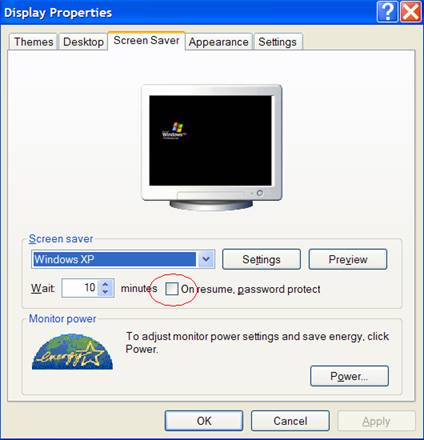
Before disabling it, be mindful of the potential consequences. Under certain circumstances the security provided by this inconvenience should be considered benefit enough to cope with it. This prevents anyone from walking up to your computer and having access to all of your data. If this is a home PC, that might not be of any concern. In small business environments where data is shared amongst everyone anyway, it's also probably not of much concern other than for certain staff that have access to data like payroll that is confidential.
Another thing to keep in mind is if this is a computer in a business with a server, chances are pretty good it's in a Microsoft Active Directory domain. At a very basic level, Active Directory puts all computers at a business within an organizational structure that centralizes resources and authentication (verifying your username and password), affording greater security, flexibility and control. One feature of Active Directory is the use of Group Policies which allow
administrators to define what users can and cannot do with their machines, including mandatory configuration settings.
It's possible to configure Group Policies so users cannot modify screen saver settings, including the time to wait before activating the screensaver and if users can disable password protection. Under these circumstances, even if you can disable the password protection it may get enabled again, and there isn't anything you can do about it (unless you're the server administrator). Also in a business environment, be mindful of any company policies that require password protected screen savers, even if it's not mandated through Group
Policy or similar technical controls.
In another case, you might forget the windows login password, then you can find some password recovery tools to remove windows password.
Tuesday, 23 February 2010
How to Hack Windows Password in 3 Minutes
There are a number of reasons that crack a Windows password: just forget what is the password used is working on a computer, etc. Whatever the reason for the need to find a Windows password is Singles and can usually be done in a very short time.
- Windows Password Recovery Tool 3.0
 To find the Window's password, you'll need a program called Windows Password Recovery Tool 3.0 . It is completely free, and works very well. It is not really a program--it is a LiveCD that is burned to a blank CD (or a USB flash drive if using on a newer computer) .
The Live CD will start working at the password. You can follow the guides. For the average users password, it will likely take about two seconds to crack. For a very long password, it could take a five seconds, but that is the exception, not the rule.
Once it crack the password to blank, then remove the CD and restart the system. Enter the password at login and then change/remove it to whatever you would like.
Note: Common sense says that this should only be used on computers you are authorized to gain access to. If you use this to find the password to a computer that is not your, it is illegal. This article is for informational purposes only.
What you Need:
- a Blank CD or a USB Flash Drive- Windows Password Recovery Tool 3.0
To find the Window's password, you'll need a program called Windows Password Recovery Tool 3.0 . It is completely free, and works very well. It is not really a program--it is a LiveCD that is burned to a blank CD (or a USB flash drive if using on a newer computer) .Installing
Navigate to the official website at http://www.windows7password.net/go/winpwd/ -- download the Live CD ISO and save it to your computer. Once it is downloaded, you will need to burn the disc image to a blank CD or USB flash drive. The software used will vary--if your system doesn't have burning software already installed, you can download a trial of Nero, or something free like ImgBurn. Burn it at a low speed.Using
To use the software, insert the CD into the optical drive on the computer you wish to gain access to and hold the power button until it shuts down. Turn it back on and when the compute logo appears, press the button for the system to enter BIOS. Change the boot sequence to CD first, then Save and Exit BIOS.The Live CD will start working at the password. You can follow the guides. For the average users password, it will likely take about two seconds to crack. For a very long password, it could take a five seconds, but that is the exception, not the rule.
Once it crack the password to blank, then remove the CD and restart the system. Enter the password at login and then change/remove it to whatever you would like.
Note: Common sense says that this should only be used on computers you are authorized to gain access to. If you use this to find the password to a computer that is not your, it is illegal. This article is for informational purposes only.
Thursday, 7 January 2010
how to Protect Your Computer Privacy ( e.g. windows password).
1.Administrators Password:
These steps work in every case as long as you’re able to log in as an administrator.
①In Windows Vista, click the Start button, and in the “Start Search” field, enter lusrmgr.msc .
②In Windows XP or 2000, from the Start menu, select Run… . In the window that opens, type lusrmgr.msc and click OK.
Double-click the Users folder. On the right, in the list of local users, right-click the account name for the Administrator account, and select Set Password.
Note: On some computers, the account will not be named “Administrator” because the owner or administrator either changed that name or added administrative accounts with different usernames. In either case, you will need to know which of the accounts in the list is the designated Administrator account.
Also be aware that on Windows Vista by default, and in some Windows XP computers by owner or administrator choice, the account named “Administrator” is disabled (this doesn’t apply to Windows 2000; built-in accounts cannot be disabled in that operating system). Setting a password does not automatically re-enable the account, but it is useless to change a disabled account’s password if your goal is to affect currently active administrator accounts.
Alternate methods
You can also change the administrator password by going into the Control Panel and using the “User Accounts” control. Some users may prefer this method to the universal steps above. Follow the instructions below for your situation and operating system.
But if you forgot your windows password, how can you recover administrator password?
Please refer to How to Recover and Reset Password in windows 7/Vista/XP/2003/2K/NT for Free
2.BIOS Password/ Start up Password:
Your computers BIOS is the first program that is run when your computer starts. You can tell the BIOS to ask for a password when it starts, thus restricting access to your computer.
BUT it is very easy to clear BIOS password for some people.
How to set BIOS password?
Turn on or reboot your computer. The screen will display a series of diagnostics and a memory check.
A message like “Hit the
key to enter the BIOS setup program” will appear.
When you do hit DEL(It’s not always the DEL key some BIOS’s use F2 or F10 or anothother key combination, check your motherboard manual) at the right time you’ll see a menu screen something like this:

Note: Some BIOS versions use a graphical type menu with icons (a GUI) or have a text interface that appears differt to the one shown, the principle however is exactly the same.
As you can see there are two options that relate to passwords, Supervisor Password and User Password, these relate to controlling access to the BIOS Setup Program and the Machine Boot respectively.
Note that not all BIOS’s have this password feature, your bios may not have it in which case you won’t be able to restrict access to your computer in this way.
Select USER PASSWORD and you’ll be prompted to enter a password:
You should now enter a password of up to eight characters (most BIOS’s are limited to eight characters unfortunately). I recommend you use the full eight but take care that you choose something you’ll not forget.
The BIOS will then prompt you to confirm the password, just type the same thing again.
Now you’ll want to set your system to ask for that password every time it boots, so select the BIOS FEATURES SETUP option, to see a menu something like this:
Fairly obviously, it’s the Password Check option we’re interested in, so select it and change the setting to ALWAYS.
Now navigate back to the main menu and select SAVE & EXIT SETUP. Your machine will then reboot and you’ll be prompted for the password.
Each and every time you boot you’ll be asked for password you chose.
Please note that this method of restricting access to your computer is not completely foolproof, there are ways around it. But it will stop or at least delay the majority of casual attempts to get access.
If you forget your BIOS password, refer to How to Reset BIOS Password?
3.Hard Disk Password
It is not a very well known fact, but all hard disks have a very strong hardware password capability build in. This password is usually stored both in a chip on the HD controller (the printed circuit board on the hard disk) and on the hard disk itself in a special hidden sector.
Setting this password will make the hard disk completely unusable to anyone that doesn’t know it. And not only on your computer, but on any computer.
A lot of newer laptops will set the HD password together with the BIOS password, completely
locking all the hardware.
How to set Hard Disk Password?
This procedure is for setting password on the HDD in the ThinkPad, for HDD in the Select-A-Dock refer to your user guide.
1. Start Easy-Setup by pressing and holding F1 and then turning on the computer.
2. Select Password icon and then select HDD-1 or HDD-2 according to the hard disk type you want to set.
3. Type your desired hard disk password; then press Enter. You can use any combination of up to 7 characters. Use a combination of any letters or numbers (A to Z, 0 to 9) in uppercase (A) or lowercase (a). Uppercase and lowercase letters are treated the same.
4. Type your hard disk drive password again to verify it; the press Enter.
The hard disk manufacturers are unable to unlock a password protected hard disk, as there aren’t any “secret” master passwords build into the firmware. Even swapping the controller of the password-protected hard disk with exactly the same controller from an unprotected HD will not remove the protection on most disks, as the password (together with most of the firmware) is also stored on the hard disk itself.
The only way of retrieving any files from a password protected hard disk without knowing the password is to send it to a data recovery company for unlocking, but not all data recovery companies could or would unlock a password protected HD.
In this time of rising identity theft, protecting your personal data by locking your hard disk with a password is indeed a good idea. The downside is that when the HD eventually malfunctions it will be harder or even impossible to retrieve any files from it. So, the first rule of using a computer applies here in full strength – “Your data is only as good as your latest backup”!
Enjoy your private computer!!
It is the most common way to lock your computer. But is it the safest way? Mostly, it is the easiest way to lock your computer.
How to set administrators password?
These steps work in every case as long as you’re able to log in as an administrator.
①In Windows Vista, click the Start button, and in the “Start Search” field, enter lusrmgr.msc .
②In Windows XP or 2000, from the Start menu, select Run… . In the window that opens, type lusrmgr.msc and click OK.
Double-click the Users folder. On the right, in the list of local users, right-click the account name for the Administrator account, and select Set Password.
Note: On some computers, the account will not be named “Administrator” because the owner or administrator either changed that name or added administrative accounts with different usernames. In either case, you will need to know which of the accounts in the list is the designated Administrator account.
Also be aware that on Windows Vista by default, and in some Windows XP computers by owner or administrator choice, the account named “Administrator” is disabled (this doesn’t apply to Windows 2000; built-in accounts cannot be disabled in that operating system). Setting a password does not automatically re-enable the account, but it is useless to change a disabled account’s password if your goal is to affect currently active administrator accounts.
Alternate methods
You can also change the administrator password by going into the Control Panel and using the “User Accounts” control. Some users may prefer this method to the universal steps above. Follow the instructions below for your situation and operating system.
But if you forgot your windows password, how can you recover administrator password?
Please refer to How to Recover and Reset Password in windows 7/Vista/XP/2003/2K/NT for Free
2.BIOS Password/ Start up Password:
Your computers BIOS is the first program that is run when your computer starts. You can tell the BIOS to ask for a password when it starts, thus restricting access to your computer.
BUT it is very easy to clear BIOS password for some people.
How to set BIOS password?
Turn on or reboot your computer. The screen will display a series of diagnostics and a memory check.
A message like “Hit the
When you do hit DEL(It’s not always the DEL key some BIOS’s use F2 or F10 or anothother key combination, check your motherboard manual) at the right time you’ll see a menu screen something like this:
Note: Some BIOS versions use a graphical type menu with icons (a GUI) or have a text interface that appears differt to the one shown, the principle however is exactly the same.
As you can see there are two options that relate to passwords, Supervisor Password and User Password, these relate to controlling access to the BIOS Setup Program and the Machine Boot respectively.
Note that not all BIOS’s have this password feature, your bios may not have it in which case you won’t be able to restrict access to your computer in this way.
Select USER PASSWORD and you’ll be prompted to enter a password:
You should now enter a password of up to eight characters (most BIOS’s are limited to eight characters unfortunately). I recommend you use the full eight but take care that you choose something you’ll not forget.
The BIOS will then prompt you to confirm the password, just type the same thing again.
Now you’ll want to set your system to ask for that password every time it boots, so select the BIOS FEATURES SETUP option, to see a menu something like this:
Fairly obviously, it’s the Password Check option we’re interested in, so select it and change the setting to ALWAYS.
Now navigate back to the main menu and select SAVE & EXIT SETUP. Your machine will then reboot and you’ll be prompted for the password.
Each and every time you boot you’ll be asked for password you chose.
Please note that this method of restricting access to your computer is not completely foolproof, there are ways around it. But it will stop or at least delay the majority of casual attempts to get access.
If you forget your BIOS password, refer to How to Reset BIOS Password?
3.Hard Disk Password
It is not a very well known fact, but all hard disks have a very strong hardware password capability build in. This password is usually stored both in a chip on the HD controller (the printed circuit board on the hard disk) and on the hard disk itself in a special hidden sector.
Setting this password will make the hard disk completely unusable to anyone that doesn’t know it. And not only on your computer, but on any computer.
A lot of newer laptops will set the HD password together with the BIOS password, completely
locking all the hardware.
How to set Hard Disk Password?
This procedure is for setting password on the HDD in the ThinkPad, for HDD in the Select-A-Dock refer to your user guide.
1. Start Easy-Setup by pressing and holding F1 and then turning on the computer.
2. Select Password icon and then select HDD-1 or HDD-2 according to the hard disk type you want to set.
3. Type your desired hard disk password; then press Enter. You can use any combination of up to 7 characters. Use a combination of any letters or numbers (A to Z, 0 to 9) in uppercase (A) or lowercase (a). Uppercase and lowercase letters are treated the same.
4. Type your hard disk drive password again to verify it; the press Enter.
The hard disk manufacturers are unable to unlock a password protected hard disk, as there aren’t any “secret” master passwords build into the firmware. Even swapping the controller of the password-protected hard disk with exactly the same controller from an unprotected HD will not remove the protection on most disks, as the password (together with most of the firmware) is also stored on the hard disk itself.
The only way of retrieving any files from a password protected hard disk without knowing the password is to send it to a data recovery company for unlocking, but not all data recovery companies could or would unlock a password protected HD.
In this time of rising identity theft, protecting your personal data by locking your hard disk with a password is indeed a good idea. The downside is that when the HD eventually malfunctions it will be harder or even impossible to retrieve any files from it. So, the first rule of using a computer applies here in full strength – “Your data is only as good as your latest backup”!
Enjoy your private computer!!
Subscribe to:
Posts (Atom)